How Do You Turn a Tapo C120 into an AI Camera?
- Written by
- Agentinosaurus Team
- Published
- Reading time
- 3 min read
Create a Camera Account in the Tapo app, connect the C120’s local stream to Station and give it custom AI alerts for a room, entrance or garden gate.
Can a Tapo C120 work with ChatGPT-style AI?
Yes. The Tapo C120 is a compact 2K camera for indoor or outdoor use, and like most powered Tapo cameras it can share its live view over RTSP once you create a Camera Account. Agentinosaurus reads that stream locally through Station and uses a vision model (OpenAI with your key, or TypeSafe AI) to look for the situations you describe.
Your Tapo app, cloud recording and SD card keep working as before.
| Setting | Value |
|---|---|
| Main stream (best for AI) | rtsp://CAMERA_IP:554/stream1 |
| Substream (lower resolution) | rtsp://CAMERA_IP:554/stream2 |
| ONVIF port (automatic discovery) | 2020 |
| Login | The Camera Account you create in the Tapo app, not your TP-Link ID |
| Power | Wired power adapter, so it can be checked at any time |
What can you ask a Tapo C120 to notice?
The C120’s weatherproof body means you can choose the job first and the location second. Pick one situation, then mount the camera where it’s fully visible.
| Event | Where | When |
|---|---|---|
| The side gate is open | Outdoor, gate fully in view | Always |
| A person is in the driveway | Outdoor, above the garage | 10 pm–6 am |
| A package is beside the front door | Porch, aimed low | Daytime |
| The cat is on the kitchen counter | Indoor, counter in view | While you’re out |
| Someone falls and stays on the floor | Indoor, floor in view | Always |
How do you connect the C120?
The only Tapo-specific step is the Camera Account. It’s a separate username and password that lets local apps like Station read the stream without your TP-Link login.
- Finish the camera setup in the Tapo app.
- Open the camera → Settings → Advanced Settings → Camera Account, and create a username and password.
- Find the camera’s IP address under Device Info (or in your router).
- Install Station on a computer on the same network and pair it.
- Choose Add camera → Find cameras, or paste rtsp://CAMERA_IP:554/stream1 and enter the Camera Account.
How do you add a custom AI alert?
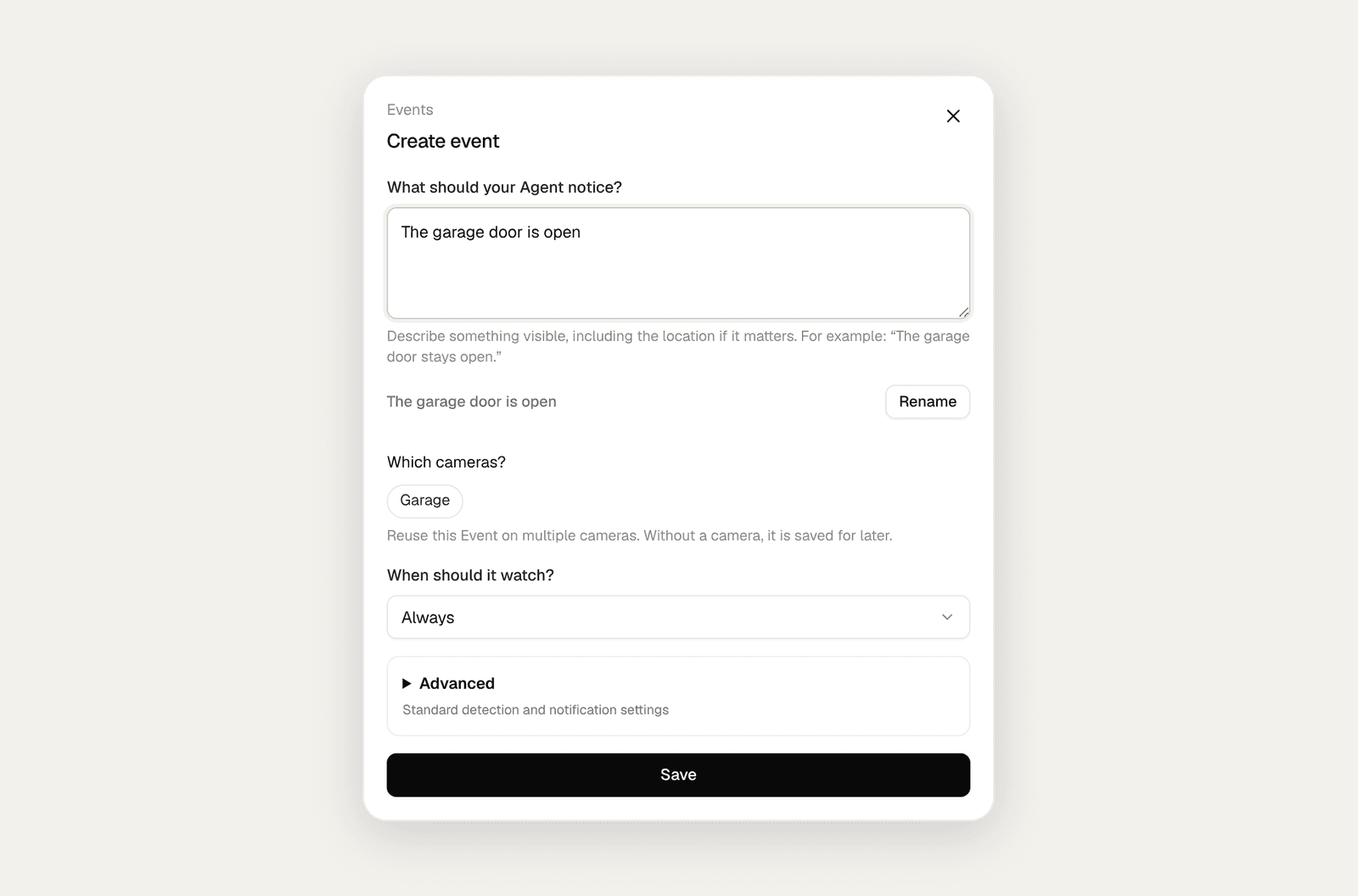
Create an Event and write what the C120 should watch for in one sentence. Select the camera, choose Always or a schedule and turn on push notifications. Test once in daylight and once under the lighting you expect at night: infrared night vision turns the picture black and white, so describe shapes and positions rather than colors.
Can the C120 watch a gate that is already open?
Yes. Describe the state, not the movement: “The garden gate is open.” Between motion, Agentinosaurus still checks the camera every few minutes, so a gate that was opened while nobody was looking is noticed too.
Under the Event’s advanced settings, choose Only if it continues to ignore a gate that is opened briefly and closed again, and turn on reminders if you want to hear about it until someone closes it.
What should you do after the first alert?
Open the incident, check what the AI saw and adjust the sentence if needed. Then add a second Event to the same camera. A single C120 above a side entrance can watch for an open gate, a person after midnight and a delivery left outside at the same time.
- Too many alerts: make the Event more specific, or require it to continue.
- Missed alerts: check the view and lighting, and try continuous analysis.
- No picture: test rtsp://CAMERA_IP:554/stream1 in VLC with the Camera Account.