How Do You Turn a Reolink E1 Pro into an AI Camera?
- Written by
- Agentinosaurus Team
- Published
- Reading time
- 3 min read
The Reolink E1 Pro already streams over RTSP. Turn it on, connect it to Station and give the camera a plain-language job, from a pet on the sofa to a fall in the hallway.
Can you add AI to a Reolink E1 Pro?
Yes. The E1 Pro is an indoor pan-and-tilt camera with a 4MP picture, and it can share a standalone RTSP stream on your network. That stream is all Agentinosaurus needs: Station reads it locally, checks frames against your Events and sends you an alert when one matches.
You keep using the Reolink app and the camera’s own recording. Agentinosaurus doesn’t change the camera’s settings beyond the stream you switch on.
| Setting | Value |
|---|---|
| Main stream (best for AI) | rtsp://CAMERA_IP:554/Preview_01_main |
| Substream (lower resolution) | rtsp://CAMERA_IP:554/Preview_01_sub |
| Port | 554 (RTSP) |
| Login | The camera’s admin user and password from the Reolink app |
| Power | Wired power adapter, so it can be checked at any time |
What can an E1 Pro watch for?
Because it pans and tilts, the E1 Pro is ideal for one room seen from a corner. Aim it so the whole situation fits in the picture, then give it one or two specific Events.
| Event | Where to aim it | When |
|---|---|---|
| Someone falls and stays on the floor | Hallway or living room, floor in view | Always |
| The dog is on the sofa | Sofa and the space around it | While you’re out |
| A person is standing by the back door | Back door, from inside | Night |
| Boxes are blocking the hallway | Full length of the hallway | Always |
| A child is climbing on the stair gate | Stair gate and first steps | Daytime |
How do you connect the E1 Pro to Agentinosaurus?
You’ll do two minutes of setup in Reolink’s app, then the rest in Agentinosaurus.
- Finish setting up the camera in the Reolink app and note its local IP address (Device Info, or your router’s device list).
- In the Reolink app or Reolink Client, open the camera’s Network → Advanced → Server Settings and turn on RTSP. Turn on ONVIF too if you want Station to find the camera automatically.
- Install Station on a computer that stays on, connected to the same Wi-Fi or router, and pair it with your workspace.
- Choose Add camera. Use Find cameras, or paste rtsp://CAMERA_IP:554/Preview_01_main and enter the camera’s username and password.
- Open the camera in your workspace and check that the live picture matches the view you want.
How do you write your first camera instruction?
Write one short sentence about something you can see on the live view. “The dog is on the sofa” is a good first Event: it’s visible, easy to stage and easy to check. Attach it to the E1 Pro, choose the hours and turn on notifications.
If an Event fires too often, make it more specific (“The dog is lying on the grey sofa”). If it never fires, check the view: the AI can only judge what is in the frame.
Can the E1 Pro watch while you are away?
Yes. As long as the camera and the Station computer are powered and online, your Events keep working while you’re out. Choose Always, or a schedule such as weekdays from 8:00 to 17:00.
By default the camera is analysed when something moves, with a quiet check every few minutes. For a fall detector in an older parent’s home, switch the camera to continuous analysis so no moment is skipped.
How do you check that the setup works?
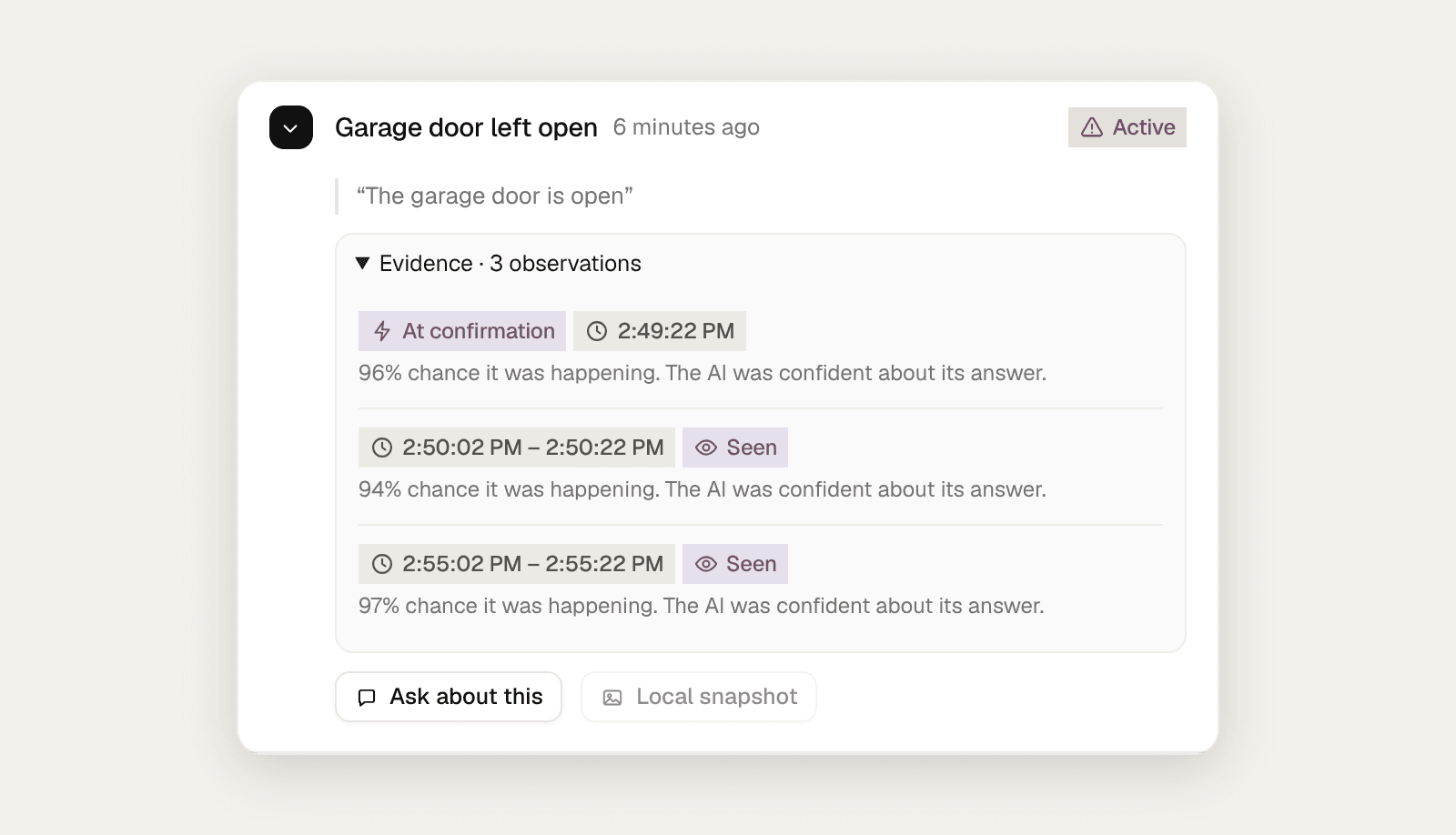
Act out the Event in front of the camera, then do something ordinary that should not match. Read both results in Messages and adjust the wording or angle if needed.
- No picture? Test the same address in VLC on the Station computer.
- Picture freezes? Use the substream address or a wired connection.
- Nothing after a router restart? Check the camera’s IP address hasn’t changed.