Blur faces before your cameras reach the AI
- Written by
- Agentinosaurus Team
- Published
- Reading time
- 3 min read
A new camera setting, on by default: Station pixelates every face it finds before a frame leaves your computer, for the AI provider, camera chat and incident snapshots.
Most Events don't need to know who it is
“Someone falls and doesn’t get up.” “A package is left at the door.” “A person is in the stockroom after closing.” None of these Events needs a face to be answered. The AI has to see that something happened, not who it happened to.
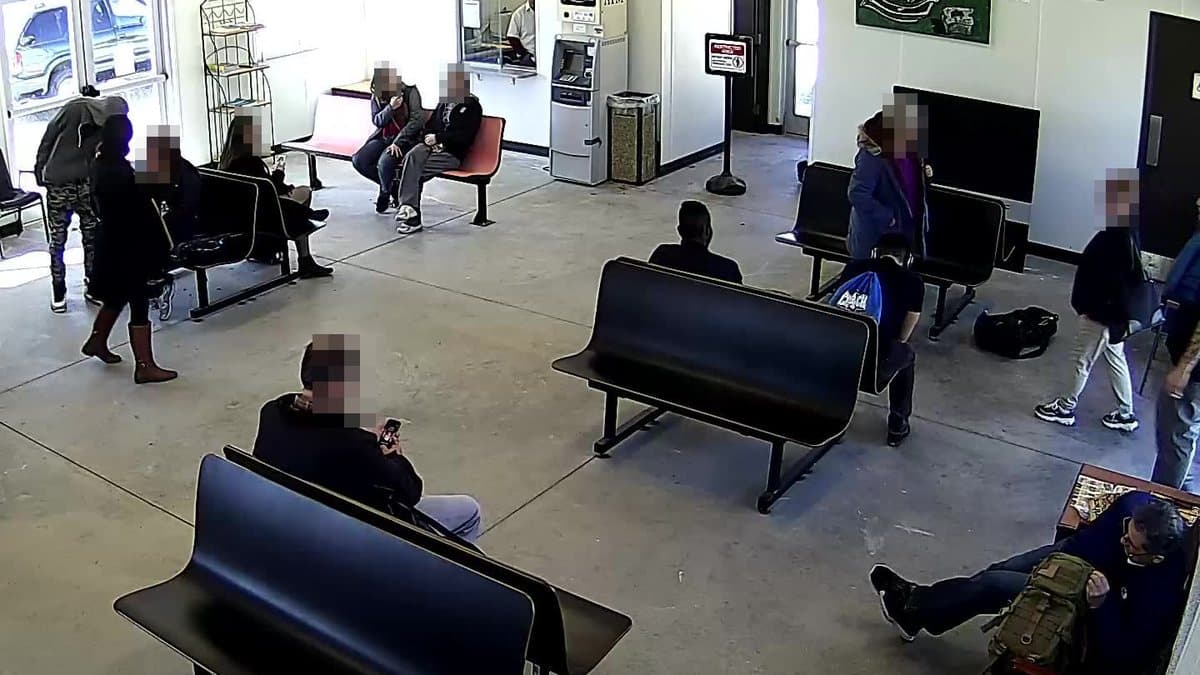
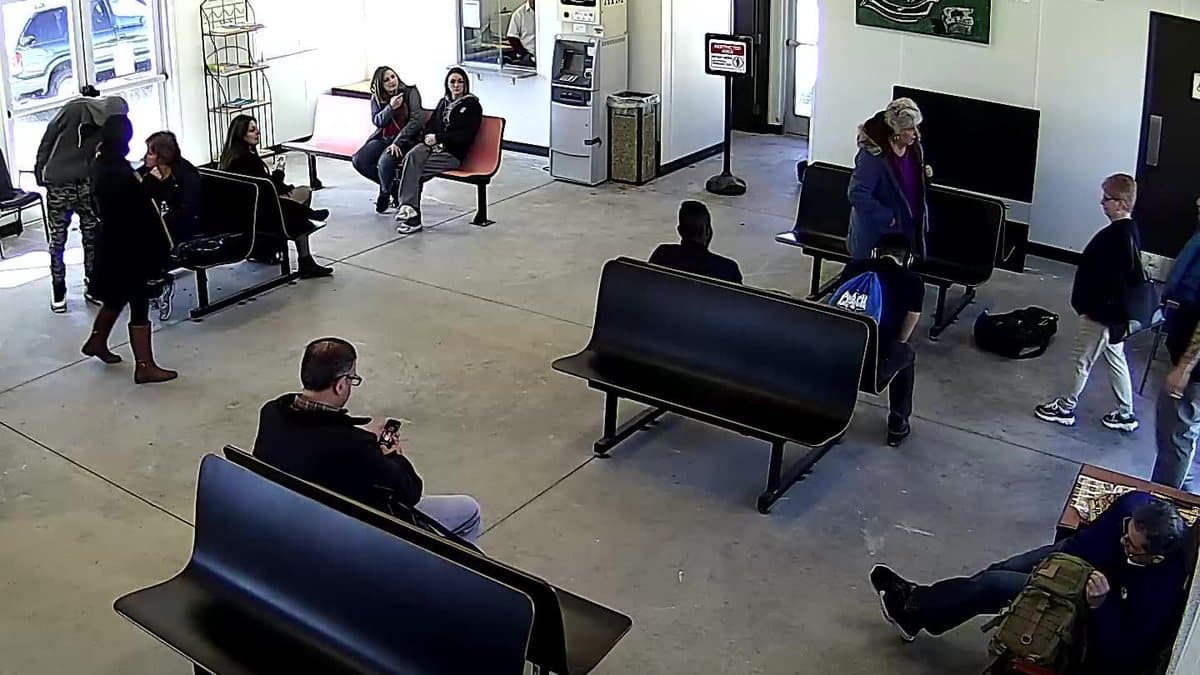
So cameras now have a new privacy setting: Blur faces. It is on for new cameras: Station finds the faces in each frame and replaces them with large blocks of colour before the frame goes anywhere. Your AI provider, the camera chat and your incident snapshots all get the blurred version.
It runs on your computer, not in a cloud
Face detection happens inside Station, on the computer next to your cameras. We use YuNet, a small open face detector from the OpenCV model collection, and run it directly in the Station app. There is nothing extra to install or download, and it works the same on Windows, macOS, Linux and Raspberry Pi. In the iPhone and Android apps, the phone’s own face detection does the same job: Apple Vision on iPhone and ML Kit on Android, both on the device.
Station looks at each frame at up to 960 pixels across, which finds faces down to about 20 pixels on a 1080p camera. Each face box is enlarged to cover hair and ears, then pixelated to no more than four blocks across, so nothing that identifies a person survives. Only frames that are about to be sent are processed, not every frame the camera records.
The original image stays where it already was: in your own live view and in the area editor, where you need it to mark places on the image.
A busy hall, frame by frame
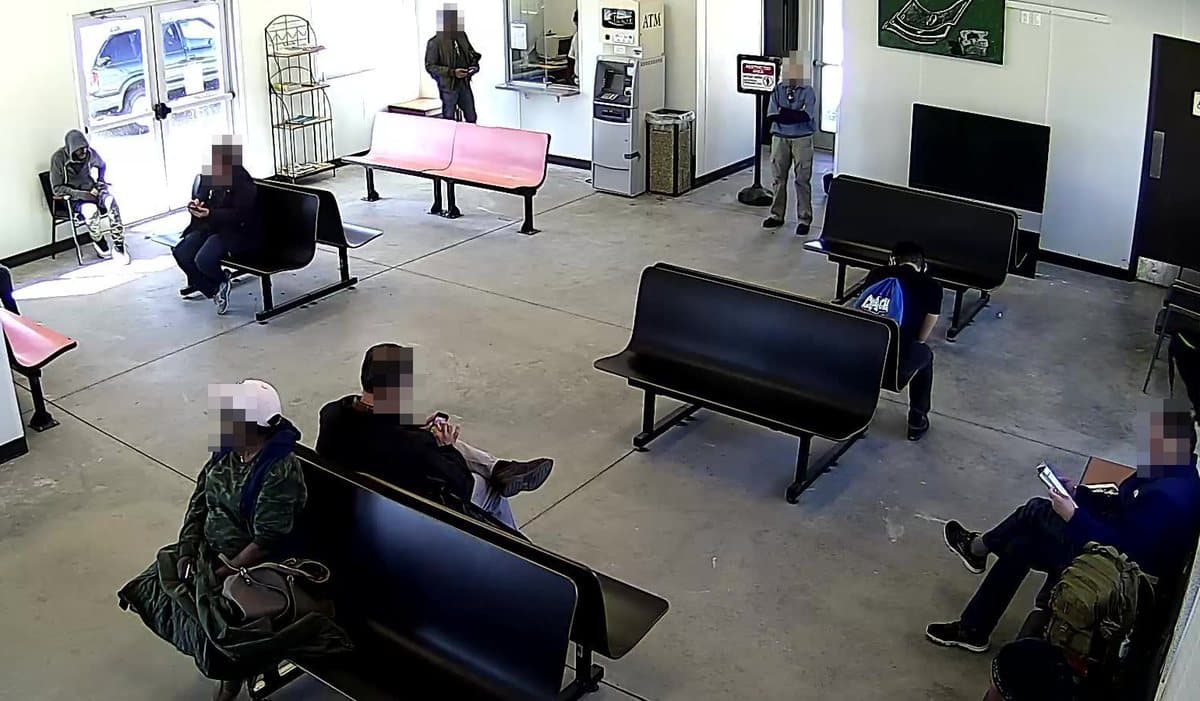
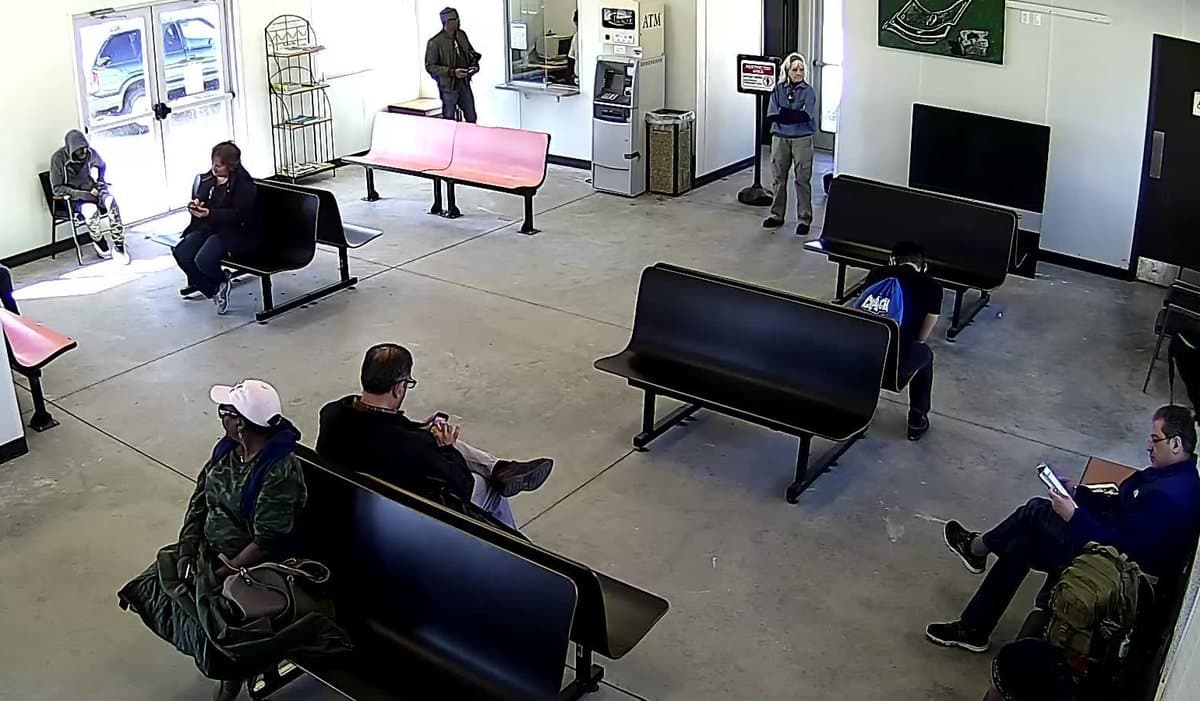
People sitting, standing, looking at their phones, near and far from the camera: each face in the frame below was found and blurred. The AI still sees where people are and what they do, which is what your Events ask about.
If it can't blur, it doesn't send
Blurring is built to fail closed. If Station can’t read, analyse or re-encode a frame, it drops the whole check, saves no snapshot and marks the camera “Face blurring unavailable”, rather than sending an unblurred frame.
Only a Station that can blur lets you turn the setting on, and only there is it on for new cameras. If a camera is set to blur faces but its Station hasn’t been updated, that camera stops instead of sending faces. The AI is also told that the faces are blurred on purpose, so it doesn’t mistake pixelation for a disguise, and that it should never try to identify anyone.
What it can miss
Face detection is statistical. It can miss a face that is very small, turned away, covered, blurred by movement or dark in a night image. You can see one in the first example: a man looking down at his bag, half outside the frame. We set it to blur a few things that aren’t faces rather than miss real ones, but no detector catches everything.
For a place that must never be seen, like a neighbour’s window, a desk or a doorway, use hidden areas. They are blacked out on every frame, whatever is in them.
On by default, your choice per camera
Blur faces is on for every camera you add to an up-to-date Station. Cameras you added before keep their current setting. Switch it off for a camera only where the AI genuinely needs to see faces.
- Update your Station to the latest version.
- Open the camera in your workspace.
- In the Context panel, under Privacy, switch Blur faces on or off.